> For the complete documentation index, see [llms.txt](https://denvzla-estudio.gitbook.io/ads-monetization-manager-for-unityads-and-admob/llms.txt). Markdown versions of documentation pages are available by appending `.md` to page URLs; this page is available as [Markdown](https://denvzla-estudio.gitbook.io/ads-monetization-manager-for-unityads-and-admob/start-here.md).
# ✦ Start here
Your first ad connection, one step at a time.
**ADS Monetization Manager for Unity LevelPlay · V1.0**\
Denvzla Estudio · Illustrated guide · October 18, 2026
ADS Monetization Manager for Unity LevelPlay — V1.0.
Connect ads to your game through a visual workspace. Start with the included simulation, then connect your own buttons, objects or script events. Set up advertising accounts only when you are ready to test on a phone.
## Choose your first step
1. **See it work:** follow [Try the demo](/ads-monetization-manager-for-unityads-and-admob/try-the-demo.md). No advertising IDs are needed in the Editor.
2. **Use it in your game:** follow [Connect your game](/ads-monetization-manager-for-unityads-and-admob/connect-your-game.md). Each connection gets its own card.
3. **Prepare phone ads:** complete App, Networks and Privacy in that order. Then test on your target device.
## Install and open
1. Use the reviewed baseline **Unity 6000.6.5f1**. In **Window > Package Manager**, add **Ads Mediation** (`com.unity.services.levelplay`), version **9.5.1**. If the package name is not listed, use the Package Manager option to add a package by name.
2. Import ADS Monetization Manager for Unity LevelPlay. Let Unity finish importing and compiling. Keep only one supported dependency resolver when LevelPlay prompts for it.
3. Open Tools > Denvzla Estudio > ADS Manager > ADS Monetization Manager Editor.
4. Select **Demo** for your first run. You can return to this guide using **Online manual** or **Offline manual** below the banner.
**Already using the older ADS Manager?**
This is the LevelPlay edition, not an in-place compatibility layer for the former Unity Ads / AdMob integration. Use a clean project or remove the old integration and its obsolete GoogleMobileAds installers before adding this edition. Recreate your connections using the new cards. Do not import Advertisement Legacy or the old Google Mobile Ads Unity plugin alongside this package.
## A quick Unity vocabulary
* **Hierarchy:** the list of objects in the open scene. Drag from here.
* **Inspector:** the panel showing the selected object and its components.
* **Scene:** a level or screen you can save. Save it after making connections.
* **Play Mode:** Unity's preview mode. Stop Play before editing setup.
* **Component:** a script attached to an object. Drag its title bar to connect that exact component.
## Four simple tabs
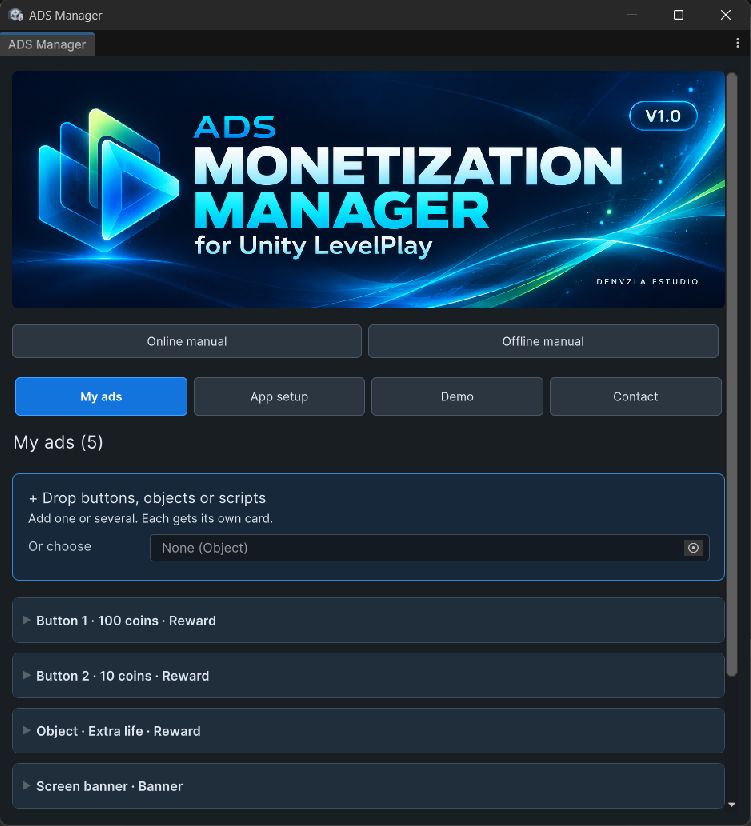
* **My ads:** connect your game and choose the outcome.
* **App setup:** enter your mobile app details, install networks and connect privacy.
* **Demo:** open the single example scene.
* **Contact:** website, email and support.
Real Unity workspace. The blue drop area accepts multiple scene buttons, objects and components.
**What the screenshots show**
All editor and demo images in this manual are real Unity captures. The demo screens show Editor simulation. They do not show live advertising or prove native device delivery. Layout wraps on narrow inspectors; scroll to see the remaining controls.
## What you need later
For mobile builds, use the package baseline of Android API 26 or newer / iOS 15 or newer and check any higher requirements of your selected adapters. iOS building requires a Mac with a compatible Xcode installation. Your Unity editor, target SDK and store requirements may change independently; review the official platform documentation before release.
SDK installation reference: [Unity LevelPlay package integration](https://docs.unity.com/grow/levelplay/sdk/unity/package-integration/).